Pulsar Example
Here we use an example to introduce how to create File -> Pulsar -> ClickHouse data ingestion.
Deployment
Install InLong
Before we begin, we need to install InLong. Here we provide two ways:
- Docker Deployment (Recommended)
- Bare Metal Deployment
Install ClickHouse
docker run -d --rm --net=host --name clickhouse -e CLICKHOUSE_USER=admin -e CLICKHOUSE_PASSWORD=inlong -e CLICKHOUSE_DEFAULT_ACCESS_MANAGEMENT=1 clickhouse/clickhouse-server:22.8
Cluster Initialize
When all containers are successfully started, you can access the InLong dashboard address http://localhost, and use the following default account to log in.
User: admin
Password: inlong
Create Cluster Tag
Click [Clusters] -> [ClusterTags] -> [Create] on the page to specify the cluster label name and person in charge.
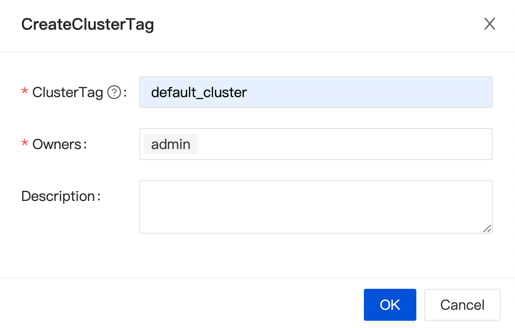
Since each component reports the ClusterTags as default_cluster by default, do not use other names.
Register Pulsar Cluster
Click [Clusters] -> [ClusterTags] -> [Create] on the page to register Pulsar Cluster.
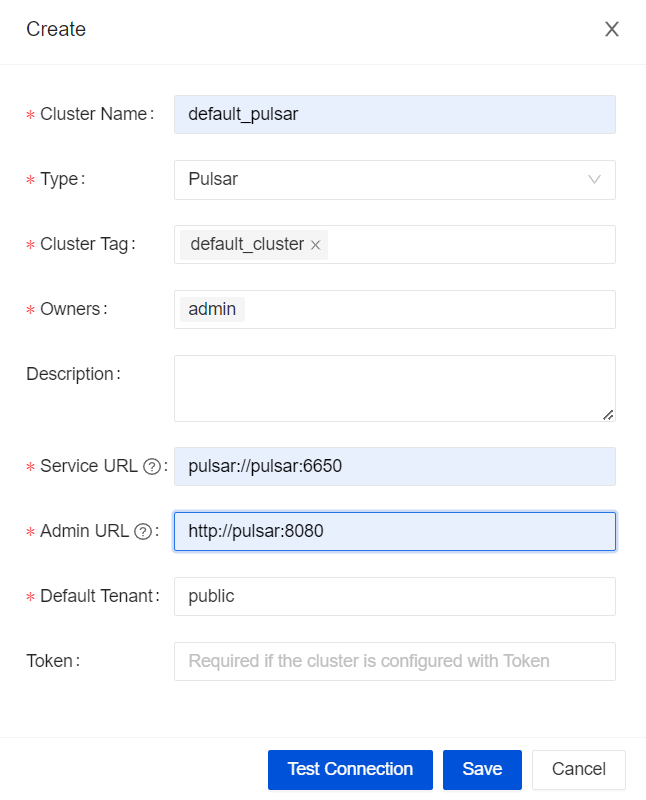
The ClusterTags selects the newly created default_cluster, the Pulsar cluster deployed by docker:
Service URL is pulsar://pulsar:6650, Admin URL is http://pulsar:8080.
Register Clickhouse DataNodes
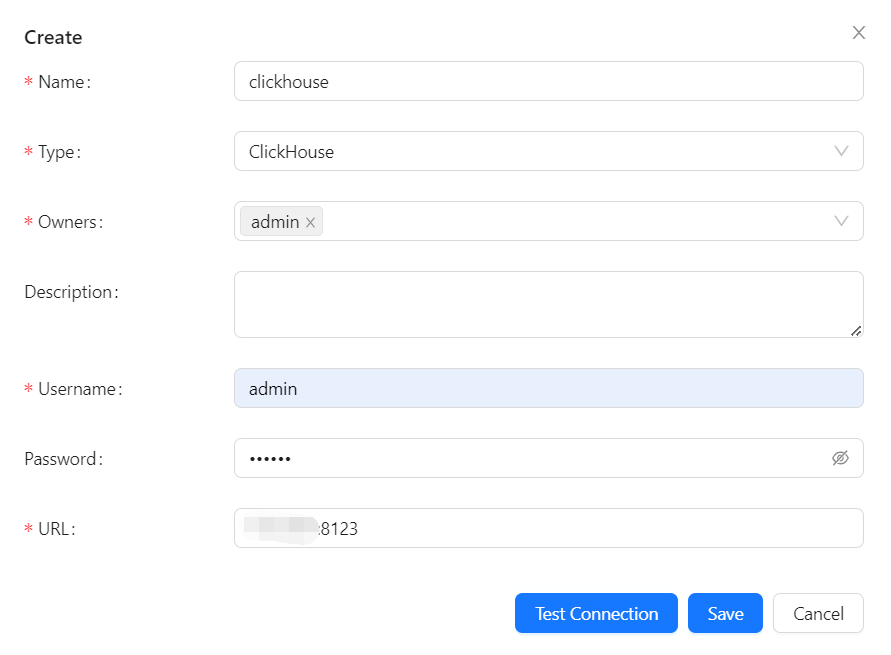
Click [DataNodes] -> [Create] on the page to register ClickHouse DataNodes.
Create Task
Create Data Streams Group
Click [Ingestion] -> [Create], inpit ID and select Pulsar Type.
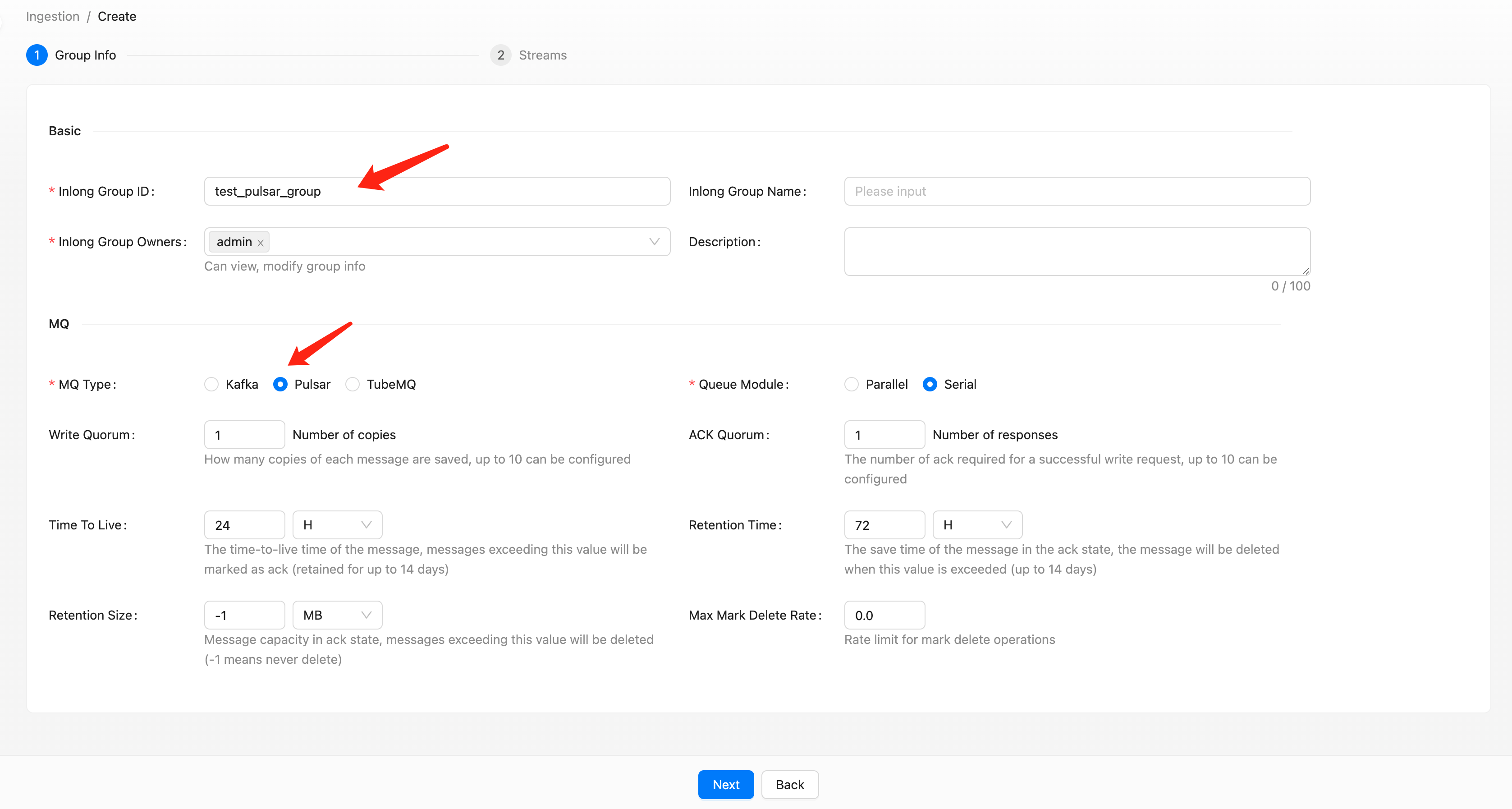
If you want to use Kafka, you need to modify the MQ_TYPE in docker-compose.yml
Create Data Stream
Click [Next] -> [Create], config data stream.
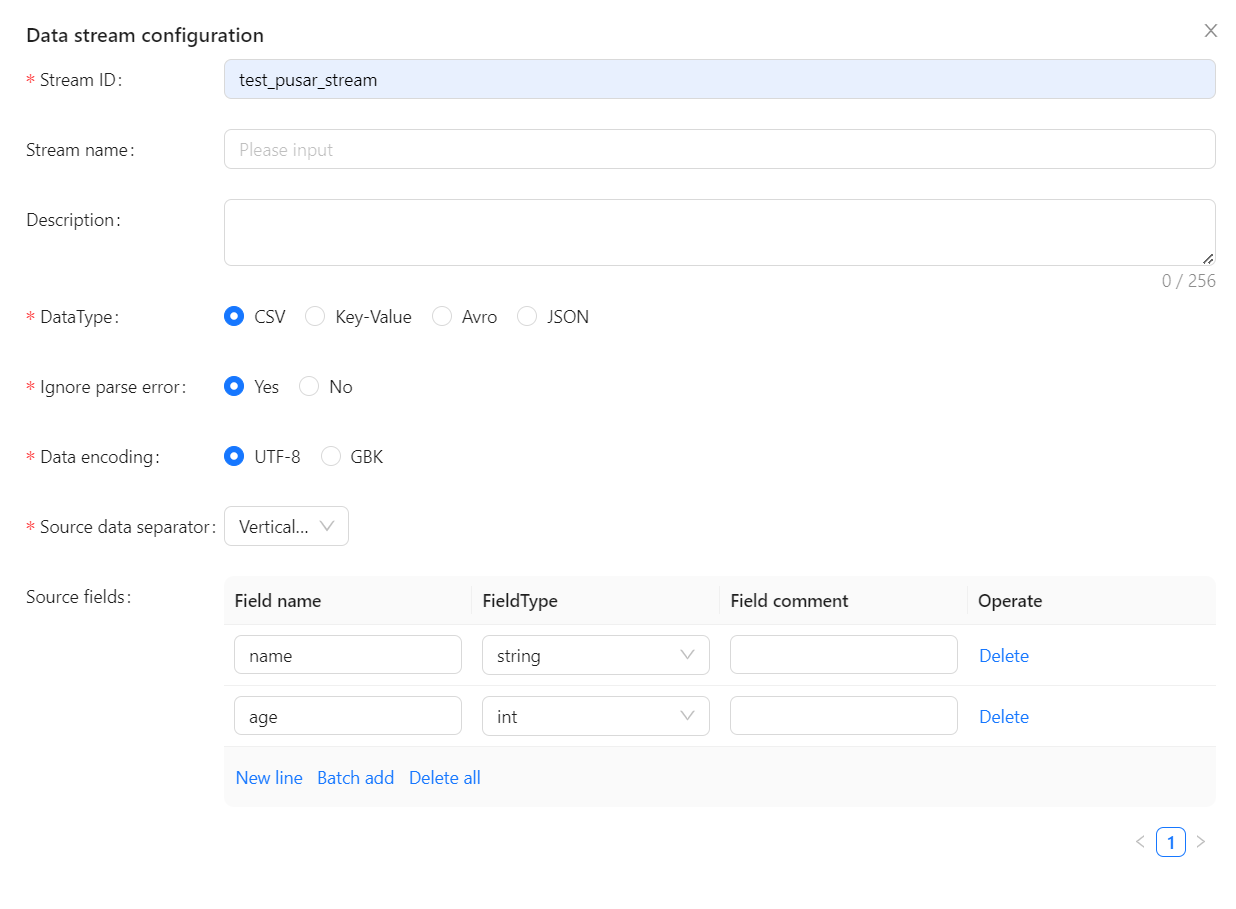
Create Data Source
Click [Sources create] -> [File], config data source informations.
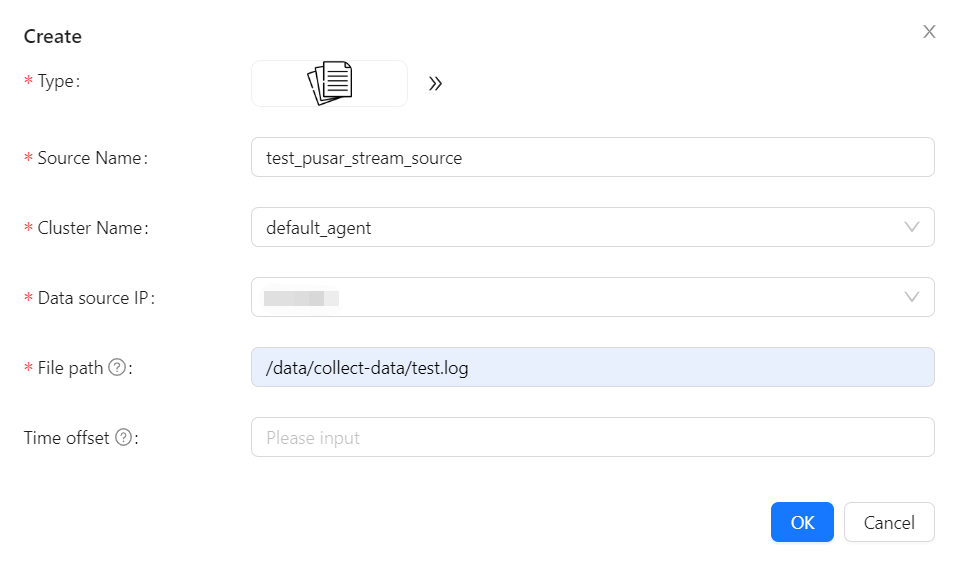
Create Data Sink
Click [Sinks create] -> [ClickHouse], input Name, DbName, TableName and select created ck DataNode and so on, then click [save].
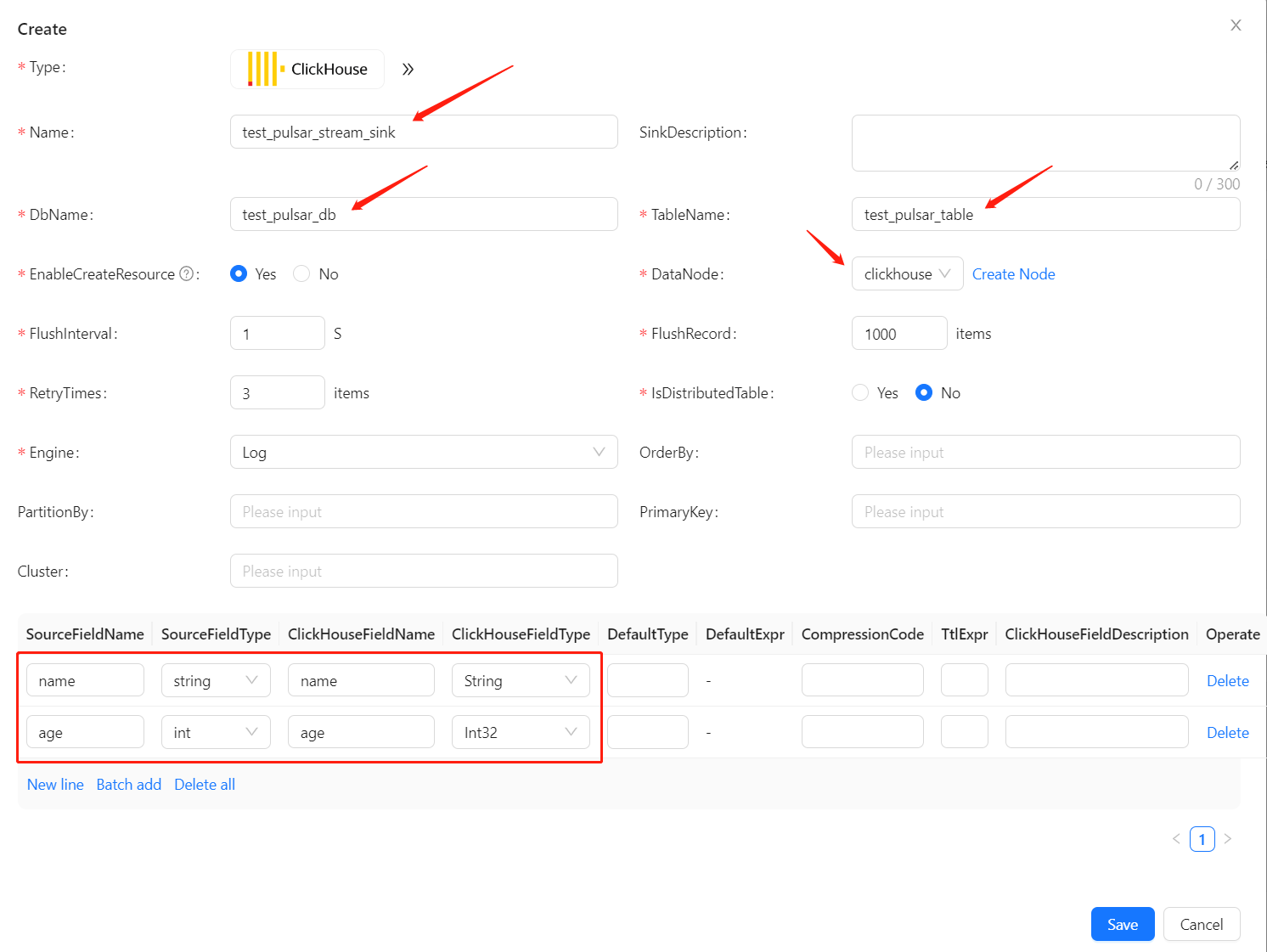
Approve Data Stream
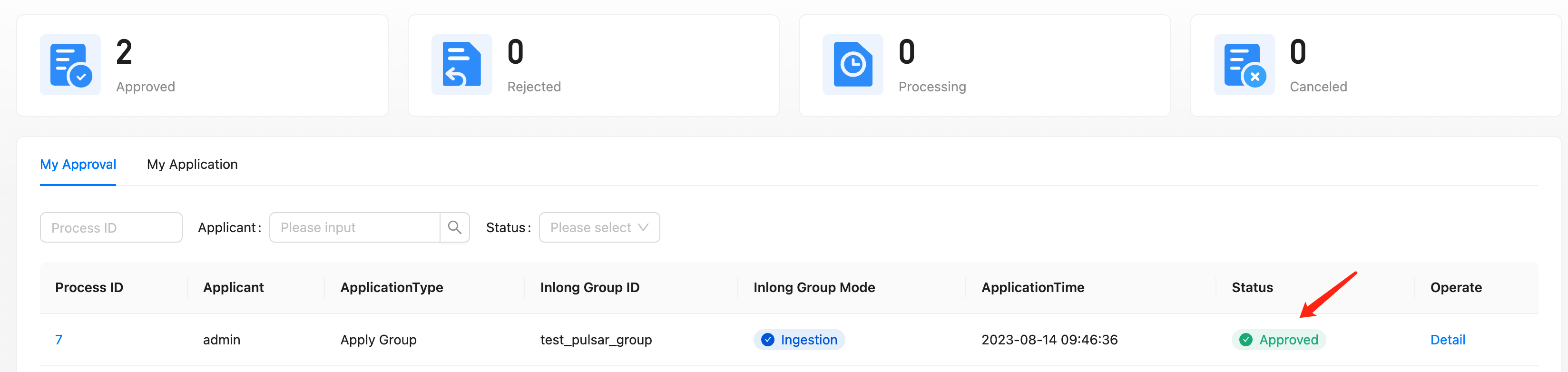
Click [Approval] -> [MyApproval] -> [Detail] -> [Select Cluster tag] -> [Ok].
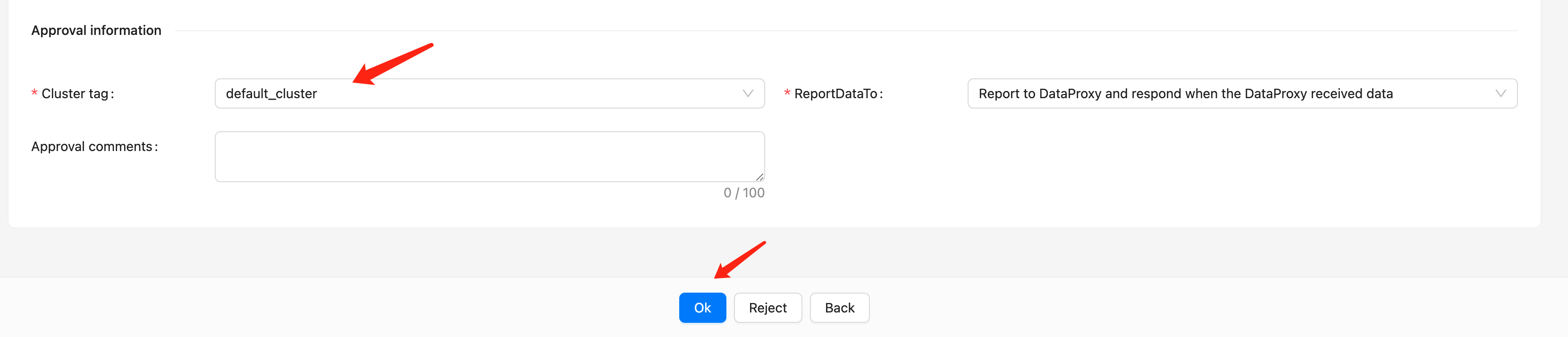
Back to [Ingestion] page, wait for [configuration success].
Test Data
Enter Agent Container
docker exec -it agent /bin/bash
Send Data
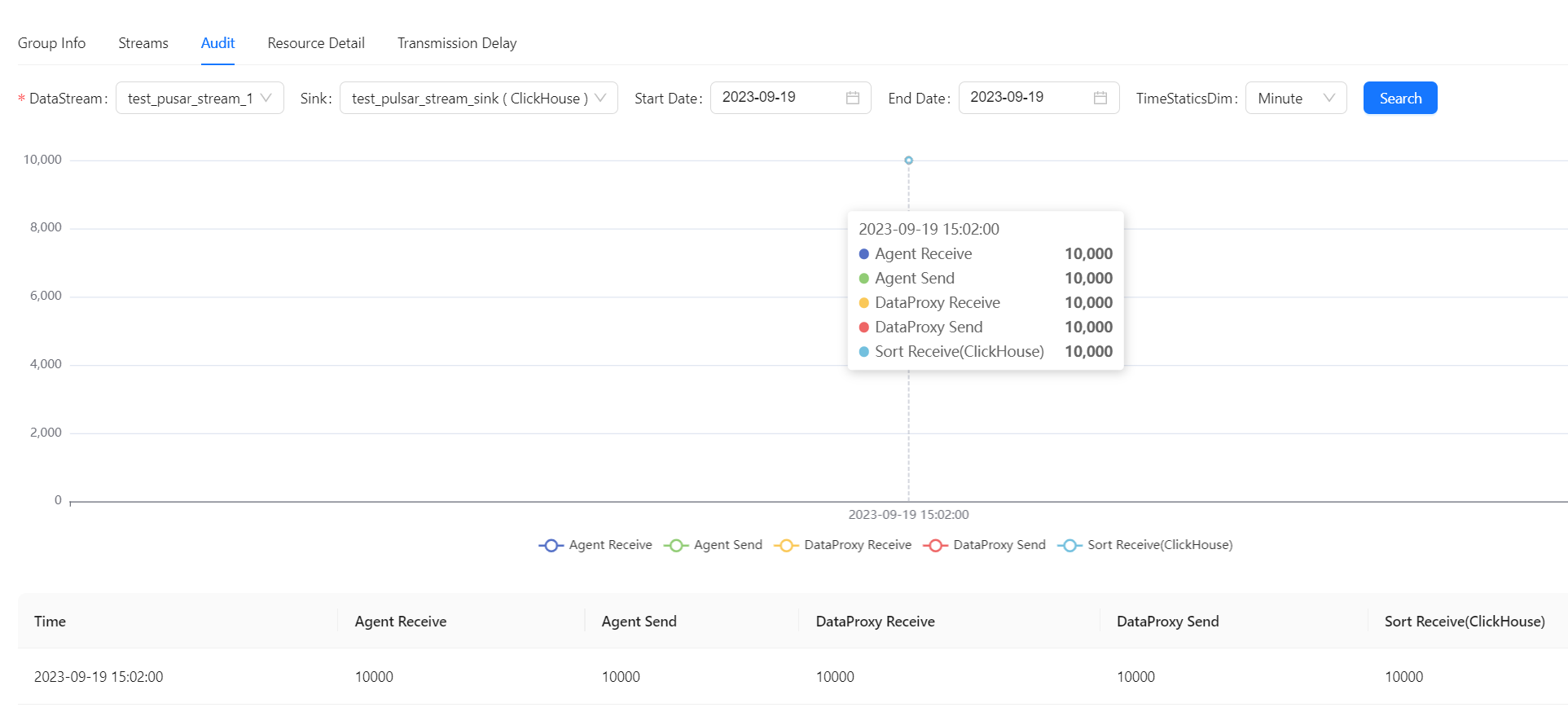
# collect file /data/collect-data/test.log data source configuration path and total of 10000 data packets are sent.
for i in {1..10000};do echo "name_$i | $i" >> /data/collect-data/test.log;done
Verify Data
Check data in [Audit] page.
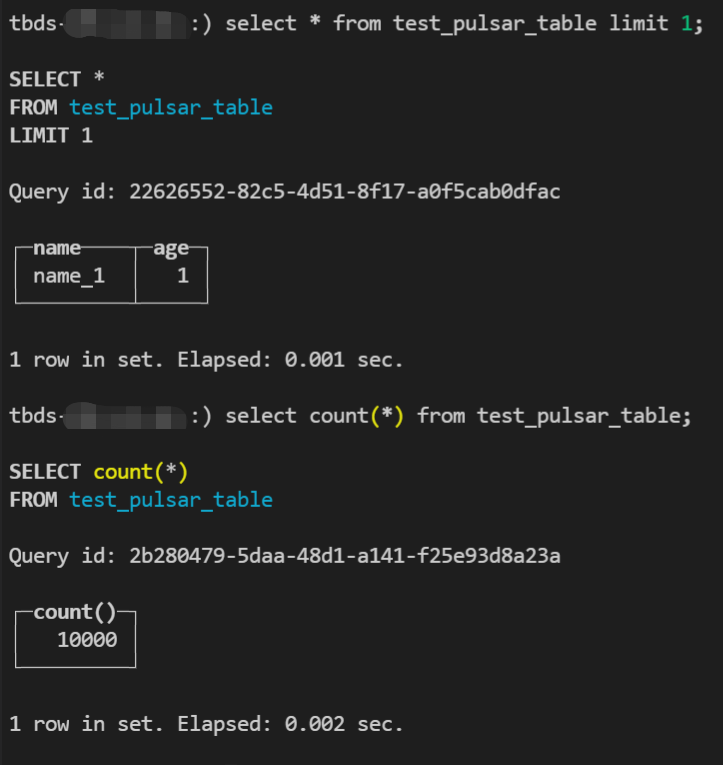
Then enter ClickHouse container, check data in table.
Questions
"specify container image platform" when start Docker Compose
The API is incompatible, you can delete platform: "linux/x86_64" in docker-compose.
Task Configuration Failed
Generally, the MQ or Flink group configuration is incorrect. You can view the error information on the page, or enter the Manager container to view detailed logs.